Any type of barcode scanner (either wired or wireless), that reads Code 39, will work with FairEntry. We have heard that sometimes the wireless scanners are a bit more difficult to actually connect with your computer/tablet, but once connected, they will work fine with FairEntry. Be sure to test your connection before the fair, making sure that your device and the scanner are communicating, and that the print size/quality of the barcodes is readable for your scanner. Using the "high quality" print option is always a good idea with barcodes.
Common Questions | Scanning at check-in | Scanning Results
The four most common questions we get about scanners:
- They are not connected and communicating. This is not a FairEntry "thing", but instead is the setup for the scanner and device. Some scanners and devices are "plug and play", meaning they automatically connect and recognize each other, but others require a setup process. Check your scanner documentation for help with this.
- The scanner won't read the barcodes. This is a print issue. Be sure to print using the high quality print option, and experiment if needed with changing the print size--going over 100% on the print dialog box to see if that solves the problem.
- Nothing happens when I scan in the entry number. If your scanner is reading the barcodes correctly, this is most likely because your cursor is not in the Search box when you scanned the entry number.
- Can I use my phone as a scanner? That is not possible, primarily because you cannot have the scanner app and FairEntry both active on your phone at the same time. They are separate programs, not designed to share information with each other.
Scanning at check-in:
- If you print entry cards, scan the barcode from the entry card when you are on the Check-in screen. (Be sure to click your cursor into the Search box before you scan.) That will bring up the entry, and you can add more information if needed (weight, etc.) and then click the green Check In button.
- To check in multiple exhibits for one exhibitor, you may wish to use the Standard Report (Entries) Entry List By Exhibitor (Barcode). Then you can quickly scan and check in each entry for one exhibitor.

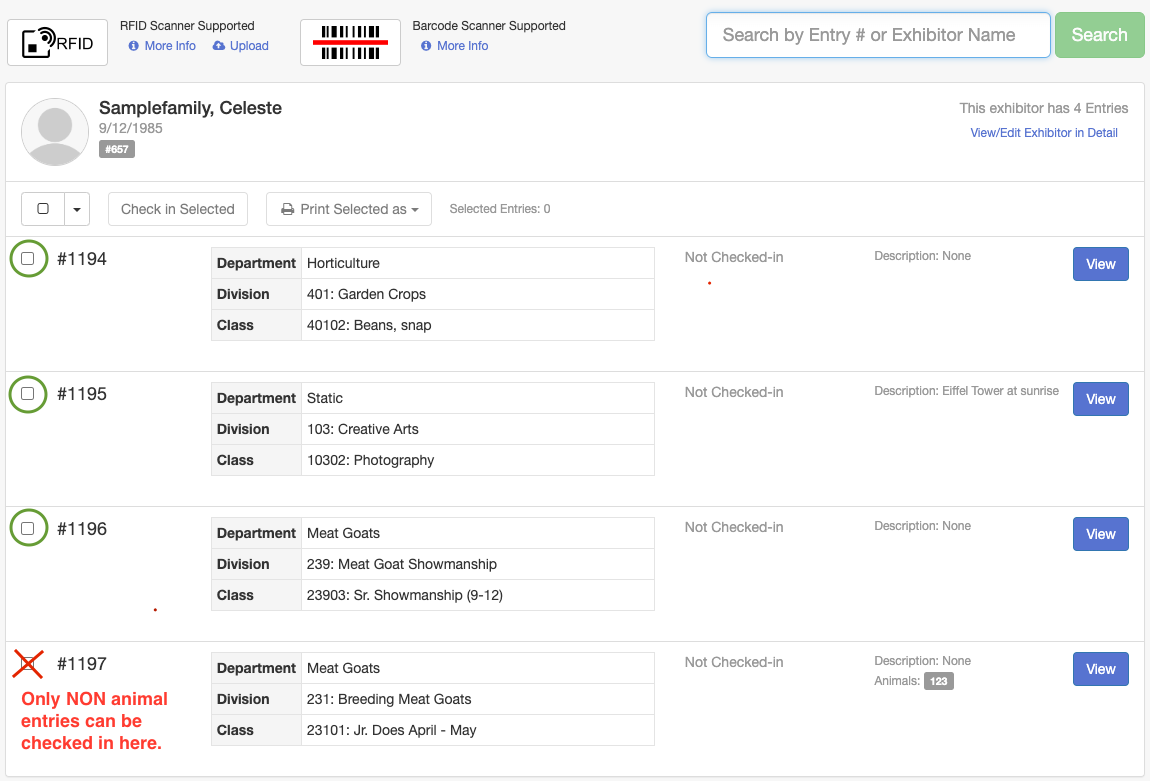
- Another option for checking in exhibits for one exhibitor: You can scan the EXHIBITOR barcode (seen in the top portion of the report above) to bring up a list of all entries for that one exhibitor. This brings up the Bulk Check-in Screen, where you can select and check in multiple (non-animal) entries for that exhibitor all at once.
Scanning for results entry:
- Before entering results, print the Standard Reports (Results) Ribbon Barcodes and Placing Barcodes.

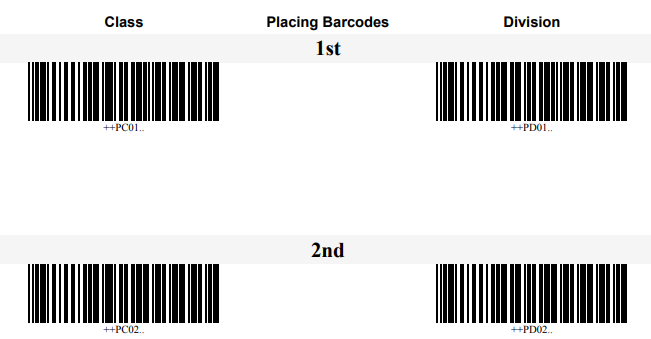
- On the Results menu, Results by Entry screen, (with your cursor in the Search box) scan in the Entry number (either from the entry card/tag or from a custom show program that includes barcodes).
- Scan the appropriate ribbon and/or placing barcode for that entry, being careful to choose the right level--Class for the first judging result, Division only if there is a second judging result. Results are automatically saved/updated as they are scanned in.
- Some fairs use index cards with holes cut in them to better isolate the results--making it harder for someone to accidentally scan a blue when they meant to scan a red. You can also cover over any barcodes that would not be used for the results that are being entered, to help prevent data input errors.
- Since awards are individual for each fair, not standard like ribbon colors and placings, there is no barcode available for awards. Those will have to be selected manually on the Results Entry screen, starting by clicking on the green Edit Results button in the lower left.
