It is important to note that the names of the awards cannot be changed after results have been entered using the original award. Be sure that your awards are named correctly before you begin entering results.
Entering Results:
To enter results for entries in your fair, begin on the Results menu tab. When results are entered, it's important to enter them at the correct level--the first judging result (class) or the second judging result (division), so that the points and premiums that are set up for the entries are correctly applied. In general, there should not be a time when an entry is given division results without having first been given class results.

- Results by Entry: Use a barcode scanner, or use the Search box to bring up an entry. You can enter both class results and division results from that screen when you click Edit Results. You can also enter the ribbon and/or placing by scanning the appropriate ribbon or placing barcode. (See Reports>>Standard Reports>>Results for printed ribbon & placing barcodes.)

- Class Results by Hierarchy: Select a class and enter the first judging results for all entries in that class. You can open all the entries to editing by using the Edit All button, but each result entry must be saved separately before exiting the page.
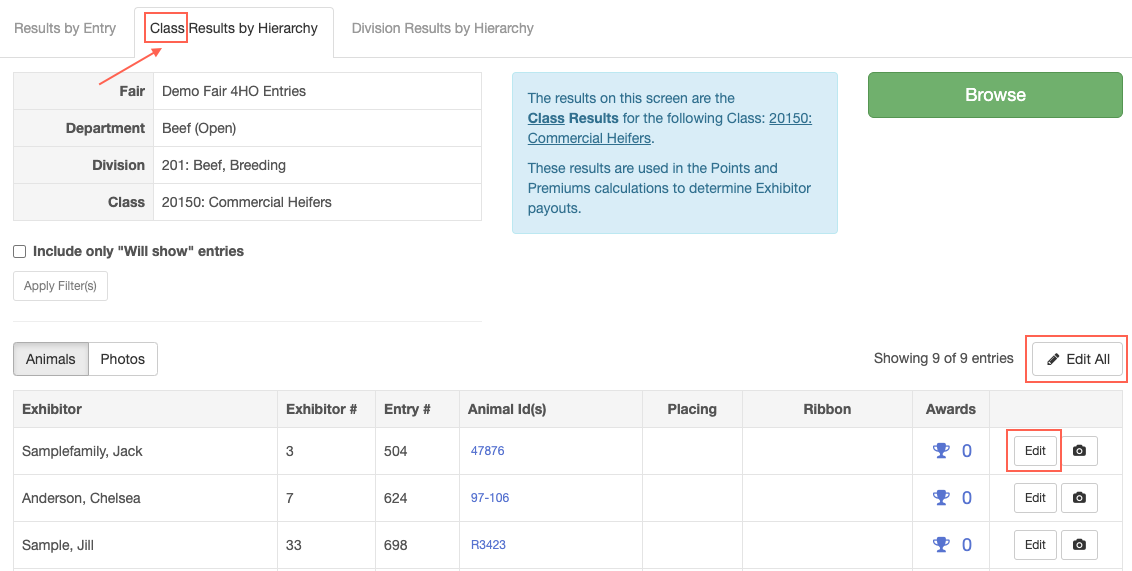
- Division Results by Hierarchy: Select a division and enter the second judging results for all entries in the division. Notice that you can filter for first-results placings. You can open all the entries to editing by using the Edit All button, but each result entry must be saved separately before exiting the page.

See Also:
Quick Video: Entering Results (9 min.) demonstrating the results entry process
Setting up Class Results and Division Results
Using Barcode Scanners at the Fair
Quick Video: Judging Online Photos (6 min.)